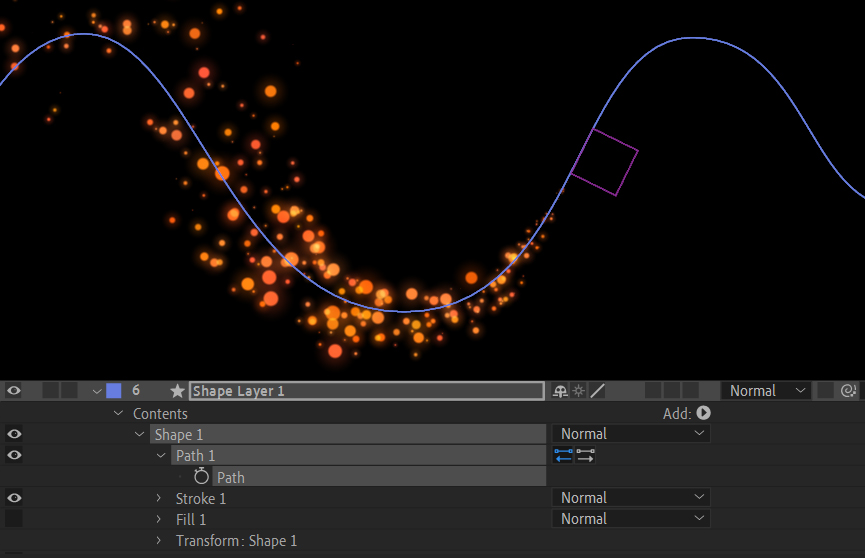
Copy and Pasting a Path |
Drawing or importing a Path and then using it as a Motion Path for footage is a powerfully simple way to create complex animations. There are more than one way to acheive this and today we will take a look at two methods. The first is the simple copy-paste approach. Selecting and copying a Path and then pasting it into a footage Position Track is staightforward and effective way to do this. Although the workflow is simple, there is an easily overlooked step that must be followed exactly or the attempt will fail: When copying the Path in the first place, you must be sure to selct the whole Path Shape. In the example above, selecting Path1 might seem like the choice to make. However, you need to twirl down that track to reveal the Path below. Selecting the Path with the Stopwatch will highlight all 3 tracks. Executing the copy command will now select all of the Path data so it can be pasted in whatever manner you choose. The second method we will look at introduces a Null Object into the mix. There are certain advantages to using this second method, which we will explore in the following step-by-step... |