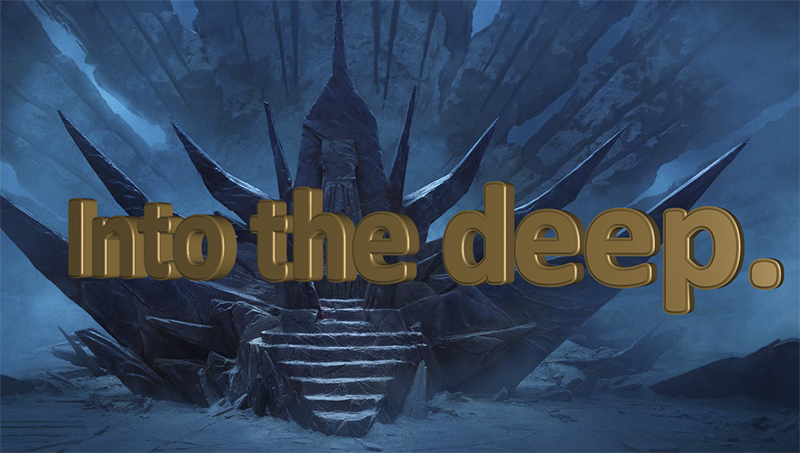
To explore 3D text, Create a Comp at 1080p x 10 seconds. Pick a background from the folder of backgrounds. Now, double-click on the Text Tool icon to place a cursor in the middle of your comp. Choose a font that is simple (sans serif) and bold. Type a short phrase.
Once done, left-click on the layer in the timeline to exit text-edit mode. With the layer still highlighted, you can fiddle with the parameters of the font in the Character Panel and it will update the whole phrase. Choose a middle value color and size up as necessary.
Switch the layer to 3D. If set to the Classic 3D render engine, you cannot modify the depth. Change this to Advance 3D (next to view options at bottom of Comp window.) Now a selection of Geometry Options are available in the text layer properties.
Twirl down Geometry Options and push the extrusion level to 50. Choose a Bevel Style of Angular and change Bevel Depth to 4. You've created 3D text but you cannot see it. Add a Camera and angle it to one side and switch view to Camera 1. You can see depth, but there is no distinction between front and sides of letters. Add a Point Light and pull to the right side. You can now see shadows but they are black. Add an ambient light that is 25% Intensity. Tweak away as necessary.