Track Camera: This is a powerful and extensive feature. After Effects will analyze footage and attempt to define a 3D grid within it. After that, it will generate numerous track planes that you can use to align footage elements into the virtual 3D space.
Track Motion: There are a number of tracking tools found under this mode...
* Corner Pin Tracking: [Click on Track Motion in the Tracker Panel. Pick Perspective Corner Pin from the Track Type drop-down menu] for objects with four points, such as screens, frames, signs, and other simple surfaces. This tracking mode is great for screen replacement and introducing elements within a window or door.
* Single-point tracking: tracks one point in a composition to record its x/y motion data. Use this mode to glue an element onto a single point as it moves across the screen. Adjust relative position of the element via its Anchor Point.
* Two-point tracking: works with two points in a composition. This workflow records the relationship between the two tracked points to record position, scale, and rotation data. Can compensate for moderate rates of camera shake.
Both of the above methods use the exact same workflow, with one important difference: Single Point Tracking analyses only the X & Y position data, while 2 Point Tracking analyses additional data involving scale and rotation...
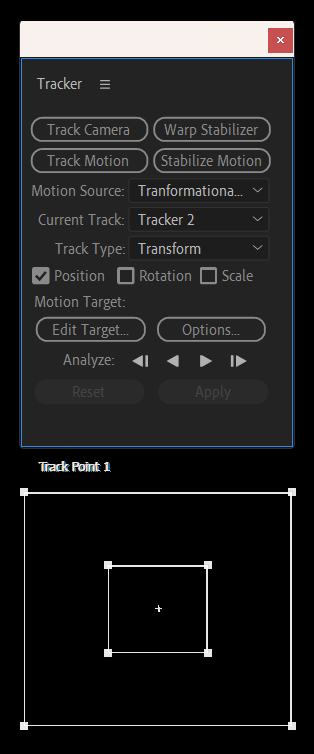
Click on Track Motion in the Tracker Panel. Pick Transform from the Track Type drop-down menu.
Check Box: Position for Single Point Tracking.
Check Box:
Position, Scale, and Rotation for 2 Point Tracking.
Track Motion uses tracking targets to identify tracking points and where to search. Although the targets are nested like a bullseye, it is import to recognize that each has a very different function. The inner box is called the Feature Region and are used to identify the regions of the video that you want AE to track. The larger box is called the Search Region, which defines where (what pixels) AE should consider when searching the footage. The small + is the Attach Point and should define a clearly identifiable (look for high contrast or bright colors) point to track.
NOTE: We will look at the Stabilization Modes of the Tracker Window at another time.