Homework for 2/04/26
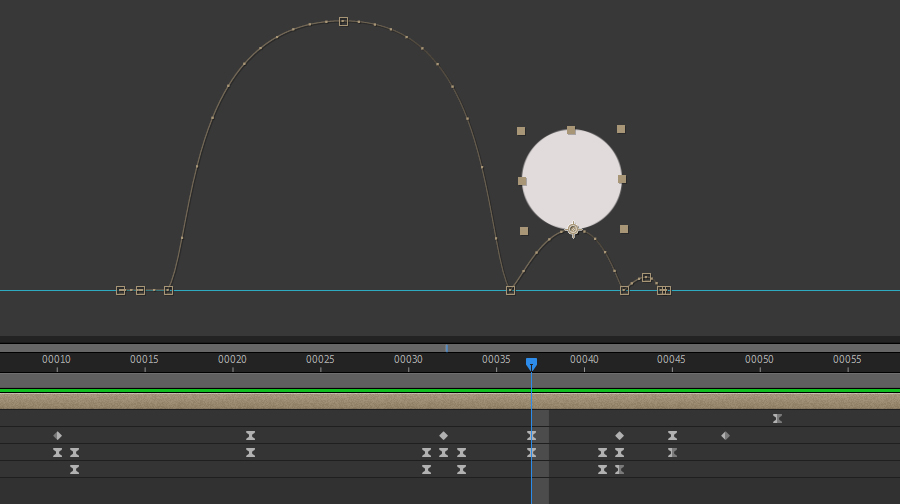
Referring back to our class notes, animate a "white ball" in a series of bounces. Read details below.
SETUP: 1) Create a new Comp. Set your Comp settings to 5 seconds at 1920x1080. Chose a light gray background color. Call it "Ball Scene." 2) Click Ctrl + R to show the rulers along the side and top of your Comp. Click on the top ruler and, holding your mouse button down, drag a blue guide line to about 3/4 down into your screen to serve as a "ground." 3) Change the Rectangle Tool dropdown to Elipse Tool. These tools create vector Shape Layers which are defined by their Fill Color and their Stroke (outline.) With the Elipse Tool active, the top toolbar shows related options, including whether there will be Fill, Stroke, or both and what each color is. We want a fill color of white and no stroke. Click the word *stroke* and choose the leftmost option with red cross to opt for no stroke. Now click the word *fill* and choose the 2nd option from left for Solid Color. Confirm that the color swatch has defaulted to white. Now the tool is setup for the next step. 4) Click inside of the Comp and drap your cursor. As you drag hold down the Shift key to restrict the elipse into a perfect circle. Make the circle smallish but the exact size is not important yet. To adjust size, look to the Properties panel that should now be visible within the set of tabs lining the right side of the interface (Alternately, it may appear as a pop-up window.) Under Shape Properties, locate the Size values and change them to 200x200 px. 5) Right-Click the Layer Name in the Timeline and choose Rename. Call this Layer Ball Master. With the Ball Master layer active, go up to the Layer Menu, down to the Transform sub-group, and choose "Center Anchor Point in Layer Content." This will center the anchor point within the circle. Hit Ctrl + S to save the AEP project and name it "Ball Master Template." Hit Ctrl + Shift + S to Save-As and name to "Ball Master 01" Now you have a ball and ground as a basis for your bouncing ball scene. Animate the Position transform of the Ball Master Layer as described in our class notes, and adjust keyframes and motion path as needed.Try to create a realistic motion for the ball bounce. Have the bouncing ball scene finishd and with you at the start of class on Wednesday. We will review Rendering at the very beginning of class. |